If you play Minecraft Java Edition and like using mods, multiple worlds, or different versions, you’ve probably heard of MultiMC. It’s a free, open-source launcher that many players consider better than the official Mojang launcher for serious Minecraft fans.
MultiMC lets you create separate Minecraft instances — each one acting like its own clean space. For example You can have one instance for vanilla survival, another for a 400-mod pack, and a third for old 1.8.9 PvP, all without any conflicts. It’s lightweight, powerful, and has been trusted by the community since 2014.
What is MultiMC?
MultiMC is an alternative Minecraft launcher designed for flexibility and organization. Unlike the official launcher, which keeps everything in one big folder, MultiMC gives every Minecraft setup its own folder (called an instance). This makes it extremely easy to manage mods, resource packs, shaders, and different Minecraft versions.
It is completely free, open-source, and has no ads. Many modders, YouTubers, and technical players use it daily because it gives them full control over their game.
Key Features of MultiMC
- Unlimited Isolated Instances — Create as many Minecraft copies as you want. Each instance is completely independent.
- One-Click Mod Loader Support — Easily add Forge, Fabric, Quilt, or legacy loaders.
- Modpack Import — Import packs directly from Modrinth, CurseForge, FTB, Technic, and more.
- Advanced Java Management — Choose different Java versions and memory settings for each instance.
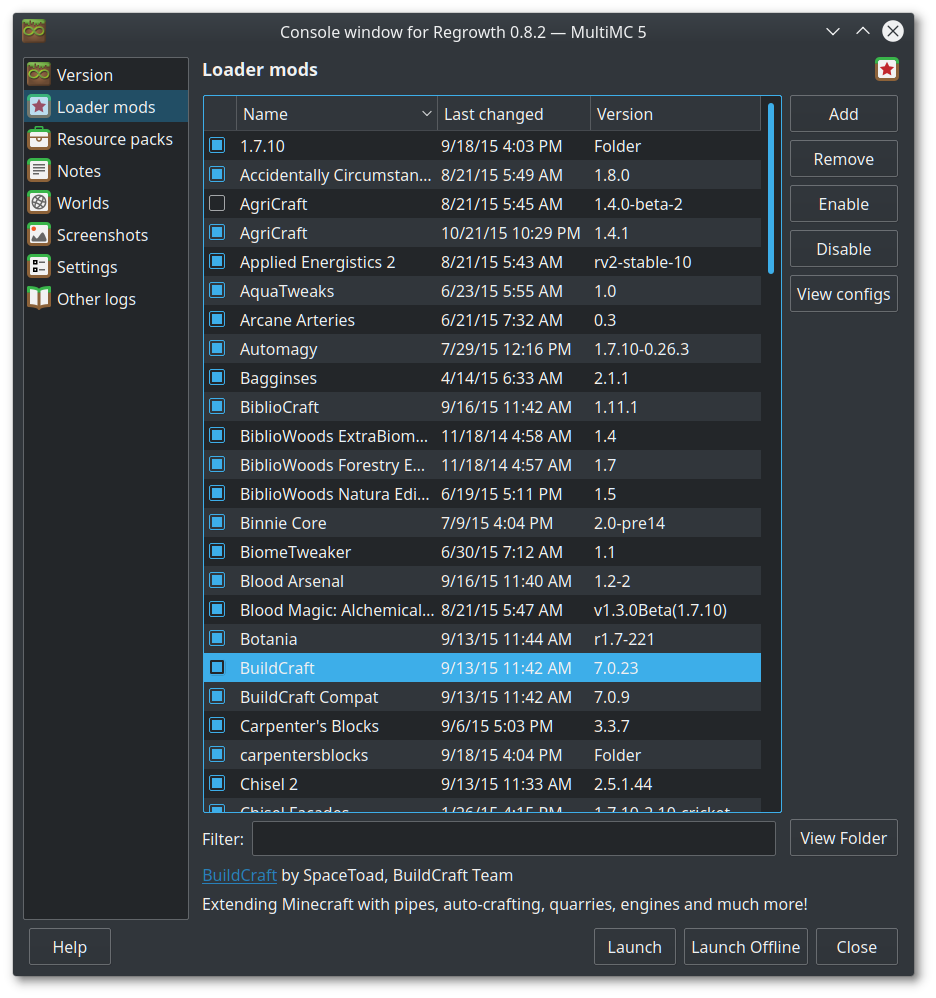
- Built-in Log Viewer — Color-coded logs help you quickly find and fix crashes.
- Easy Backup & Sharing — Export an entire instance as a zip file to share with friends.
- World, Texture Pack & Shader Manager — Manage saves, textures, and shaders directly inside the launcher.
- Quick Kill Button — Instantly close a frozen game without closing the launcher.
- Snapshot & Old Version Support — Run any Minecraft version, even very old ones, exactly as released.
- Portable Mode — You can run it from a USB stick if you want.
System Requirements Table
MultiMC itself is very lightweight and runs on almost any computer. The real requirements come from the Minecraft instances you create.
| Hardware / Software | Minimum Requirement | Recommended Requirement | Notes |
|---|---|---|---|
| Operating System | Windows 7 / macOS 10.13 / Linux (Qt5) | Windows 10/11 / macOS 11+ / Modern Linux | 64-bit OS recommended |
| Processor (CPU) | Dual-core 1.5 GHz | Quad-core or better | Not demanding for the launcher |
| RAM (System) | 4 GB | 8 GB or more | Minecraft instances need extra RAM |
| Storage | 500 MB free (launcher) | 20+ GB SSD (for instances & mods) | SSD strongly recommended |
| Java | Java 8, 17, or 21 (installed separately) | Latest Java 17 or 21 for new versions | Must install Java yourself |
| Graphics Card | Any (integrated is fine) | Dedicated GPU for heavy modpacks | Affects Minecraft FPS, not launcher |
| Internet | Required for first setup and updates | Stable connection | Needed to download versions & mods |
MultiMC does not come with Java. You must download and install Java separately from java.com or adoptium.net.
How to Install MultiMC

Installation MultiMC Launcher
1. Go to the official website: https://multimc.org/
2. Click the big download button for your operating system (Windows, macOS, or Linux).
3. Download the zip or tar.gz file.
4. Extract the file to a new empty folder (example: C:\Games\MultiMC).
5. Do not run it from the Downloads folder.
6. Open the extracted folder and double-click MultiMC.exe (Windows) or the app (macOS/Linux).
7. On first launch, log in with your Microsoft account.
8. Set up your Java path (the launcher will guide you).
How to Use MultiMC
Using MultiMC is surprisingly simple and feels very natural once you start. After you launch the program and log in with your Microsoft account, the main window shows all your Minecraft instances. To begin, just click the big “Add Instance” button at the top. You can choose any Minecraft version, pick a mod loader like Forge, Fabric, or Quilt, give your instance a clear name like “Vanilla 1.21” or “All the Mods 10”, and hit OK. MultiMC will automatically download everything you need.
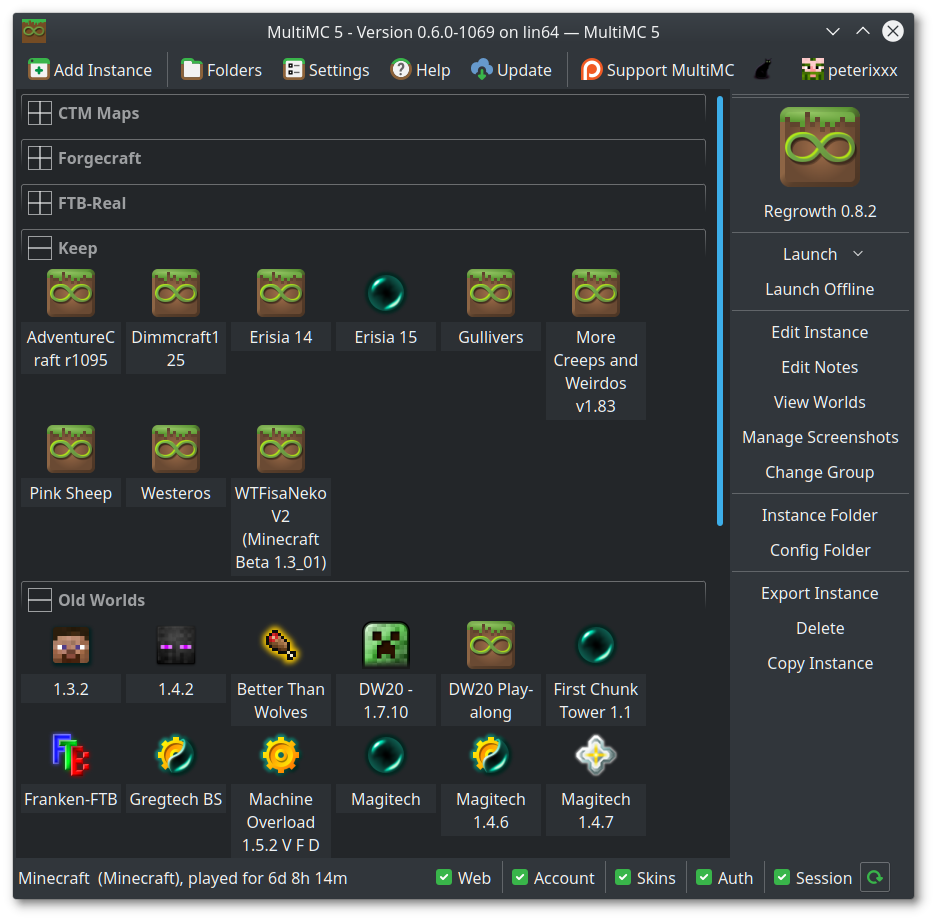
Once the instance is created, right-click on it to open the edit menu. Here you can allocate more RAM (for example, 4 GB for light play or 8–12 GB for heavy modpacks), change Java settings, add individual mods by dragging and dropping .jar files, install resource packs, or apply shaders. If you want to play a big modpack, you can import it directly from Modrinth or CurseForge with just a few clicks. When everything is ready, simply select the instance and click the “Play” button. You can switch between different instances instantly without closing the game or waiting for long reloads. If something crashes, MultiMC shows a clear, color-coded log that makes fixing problems much easier than the official launcher. You can even run multiple instances at the same time if your computer has enough memory.
Something Unique About MultiMC
What truly makes MultiMC special, and different from every other launcher, is its instance-based philosophy. While the official launcher and most others treat Minecraft as one single game, MultiMC treats it as many completely independent games living side by side. This gives you incredible freedom and safety.
For example, you can have one instance with 500+ mods for crazy exploration, another with only performance mods for maximum FPS, a third for vanilla speedrunning with old versions, and even a fourth for testing risky beta snapshots — all without any risk of mods conflicting or breaking your main world. If one instance gets corrupted or you want to completely reset it, the others stay perfectly safe.
Another unique advantage is the fine-grained Java control. You can run old Minecraft 1.8.9 with Java 8 in one instance and the latest 1.21 with Java 21 in another, each with its own custom memory settings and JVM arguments. This level of control is why many technical players, modpack creators, and server owners still prefer MultiMC even in 2026. It turns Minecraft from “one game” into a flexible platform where you can experiment freely without fear. This “one instance = one clean world” approach is the real reason thousands of players say they can never go back to any other launcher.
MultiMC vs Official Minecraft Launcher: Which One Should You Use?
If you’re trying to decide between MultiMC and the official Minecraft launcher, you’re not alone. Many players wonder whether it’s worth switching from the default launcher that comes with the game. While the official launcher is simple and beginner-friendly, MultiMC offers much more power and flexibility, especially if you enjoy mods or managing multiple setups.
To help you choose the right one for your needs, here’s a clear side-by-side comparison:
| Feature | MultiMC Launcher | Official Minecraft Launcher | Winner / Better For |
|---|---|---|---|
| Core Purpose | Advanced instance management & modding | Simple vanilla play + basic mod support | MultiMC |
| Multiple Instances | Excellent – Unlimited isolated instances | Limited (profiles exist but not truly isolated) | MultiMC |
| Mod Management | Very powerful (drag & drop, easy loader install) | Basic (CurseForge integration, but less flexible) | MultiMC |
| Modpack Installation | Good (import from Modrinth, some CurseForge support) | Easy built-in CurseForge & Marketplace browsing | Tie (depends on use) |
| Java Control | Excellent – Per-instance Java version & arguments | Very limited | MultiMC |
| RAM / Performance Tuning | Full control per instance | Basic global settings | MultiMC |
| Lightweight & Resource Usage | Extremely lightweight, runs in background easily | Lightweight but can feel heavier with updates | MultiMC |
| Portability | Fully portable (run from USB or any folder) | Not portable | MultiMC |
| Crash Logging | Advanced color-coded logs with detailed info | Basic logs | MultiMC |
| Old Minecraft Versions | Excellent support | Good, but sometimes buggy | MultiMC |
| Ease of Use for Beginners | Moderate (small learning curve) | Very easy | Official |
| Speed of Switching Instances | Instant switching | Slower (needs to reload) | MultiMC |
| Updates & Maintenance | Updates are slower (project is less active) | Regular automatic updates | Official |
| Ads / Bloat | None | Has some promotions and Marketplace ads | MultiMC |
| Account Management | Supports multiple accounts easily | Supports multiple accounts | Tie |
| Shaders & Resource Packs | Easy built-in management | Simple drag & drop | MultiMC |
| Best For | Modders, technical players, heavy modpacks, testers | Casual vanilla players, beginners | – |
FPS Performance
MultiMC does not directly affect your in-game FPS. It is only a launcher. However, because you can fine-tune Java settings and memory for each instance, many players actually get better stability and slightly higher FPS compared to the official launcher, especially with big modpacks.
- Vanilla Minecraft: Same FPS as official launcher.
- With optimization mods (Sodium, Iris, Lithium, Starlight): Excellent performance.
- Heavy modpacks: MultiMC’s clean instance system reduces conflicts and crashes, leading to smoother long play sessions.
FAQ
Is MultiMC safe to use?
Yes. It is open-source and has been trusted for over 10 years. Always download from multimc.org.
What is the difference between MultiMC and Prism Launcher?
Prism Launcher is a more actively developed fork of MultiMC. It has newer features and better modpack support. Many players have switched to Prism, but MultiMC still works perfectly fine.
Can I use shaders with MultiMC?
Yes, very easily. Just drop the shader zip into the instance’s shaderpacks folder.
Why do I need to install Java separately?
MultiMC is kept very light and gives you full control over which Java version each instance uses.
Does it support the latest Minecraft versions?
Yes, including snapshots and all 1.21+ versions.
Important Links
| Resource | Link |
|---|---|
| Official MultiMC Website | https://multimc.org/ |
| GitHub Repository | https://github.com/MultiMC/Launcher |
| FAQ Wiki | https://github.com/MultiMC/Launcher/wiki/FAQ |